

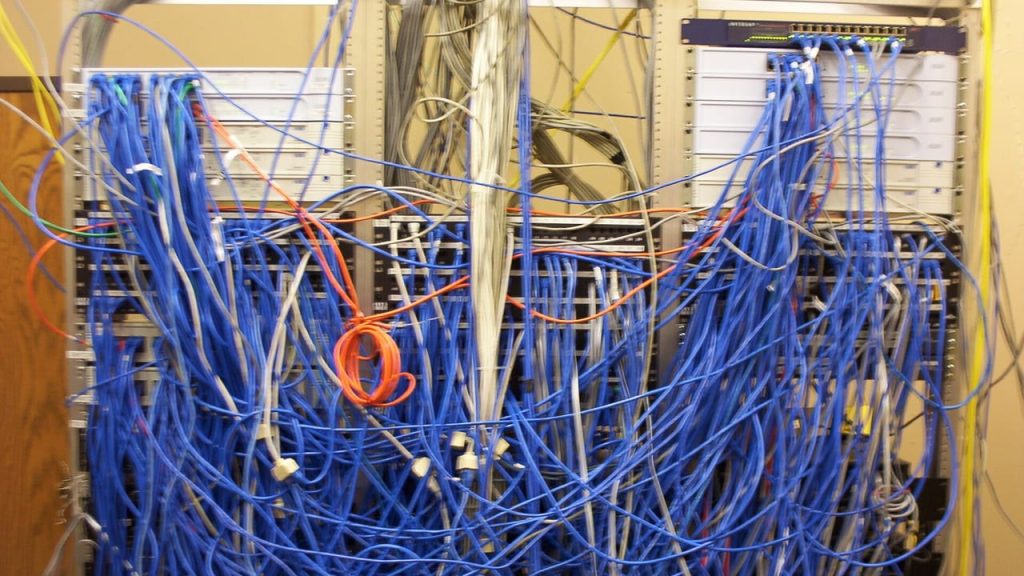
A worked example of VLANs for a 25-person Sydney office: the VLAN and subnet plan, which zones may talk to which, Wi-Fi, phones, remote access and a rollout you can do without stopping work. It ends with how to test that the segmentation actually holds.
Networking guides · VLANs
- What Is a VLAN? VLANs Explained in Plain English
- How Do You Set Up VLANs at Home? A Step-by-Step Example
- How Should a Small Business Use VLANs? A 25-Person Office Example (you are here)
Planning the addresses too? Use our free subnet calculator.
TL;DR
- A small business should use VLANs to split its network into zones by trust and role (staff, servers, phones, printers, cameras, guests, management), with a firewall between them that denies everything not explicitly needed.
- For a 25-person office, about eight VLANs with one /24 subnet each is plenty.
- The VLANs are the walls; the inter-VLAN firewall rules are the doors. Most of the security value comes from writing those rules tightly and logging them.
- Roll it out one zone at a time and check each step before moving on.
- Prove it works with a segmentation test, ideally an internal penetration test, not just a ping from your own laptop.
In this post
- What does this example office look like?
- What do you need before you start?
- What VLANs and subnets should a small office use?
- Which VLANs should be allowed to talk to each other?
- How should DHCP and DNS work across VLANs?
- How should staff and guest Wi-Fi be set up?
- How do VoIP phones fit in?
- Where should remote access land?
- What should you log between VLANs?
- What documentation and change control do you need?
- How do you roll it out without disrupting work?
- How do you test that the segmentation actually works?
- What mistakes do small businesses make with VLANs?
- How does segmentation support ASD Essentials and ISO/IEC 27001?
- What effort should you budget for?
- Key takeaways
If terms like trunk port or native VLAN are new to you, start with What Is a VLAN? and come back. Setting up a home office instead? The home VLAN example is a better fit.
What does this example office look like?
It’s a made-up professional services office in Sydney, but every piece of it is common:
- 25 staff on laptops and desktops, plus their phones on Wi-Fi
- a file server, a line-of-business application server and a NAS for backups
- about 25 VoIP desk phones and three multifunction printers
- eight CCTV cameras recording to a network video recorder, and a door access controller
- visitors who want Wi-Fi in reception and the meeting room
- a firewall, three managed switches and five Wi-Fi access points in a small comms room
- a few staff who work from home part of the week
Today it’s one flat network on 192.168.1.0/24. The guest Wi-Fi has its own password but the same network, and the cameras can reach the file server. That’s the problem: a compromised camera, an infected visitor laptop or one phished account can reach everything.
What do you need before you start?
- A firewall that routes between VLANs, applies rules to that traffic and logs it.
- Managed switches with IEEE 802.1Q, ideally with LLDP-MED for phones and Power over Ethernet for phones, cameras and access points.
- Access points that map each SSID to a VLAN, ideally with WPA3-Enterprise and 802.1X against a RADIUS server.
- An accurate device list. The switches’ MAC address tables and the DHCP lease list are a good start.
What VLANs and subnets should a small office use?
Group devices by who should be able to reach them, not by department. We use one /24 per VLAN from 10.10.0.0/16, with the third number matching the VLAN ID so anyone can place an address at a glance. To size subnets differently, use our subnet calculator.
| VLAN ID | Name | Subnet | Gateway | What lives here |
|---|---|---|---|---|
| 10 | Staff | 10.10.10.0/24 | 10.10.10.1 | Staff laptops and desktops, wired and on staff Wi-Fi |
| 20 | Servers | 10.10.20.0/24 | 10.10.20.1 | File server, application server, NAS |
| 30 | Voice | 10.10.30.0/24 | 10.10.30.1 | Desk phones |
| 40 | Printers | 10.10.40.0/24 | 10.10.40.1 | Multifunction printers |
| 50 | Security | 10.10.50.0/24 | 10.10.50.1 | Cameras, video recorder, door access controller |
| 60 | Guest | 10.10.60.0/24 | 10.10.60.1 | Visitor Wi-Fi only |
| 70 | Remote access | 10.10.70.0/24 | 10.10.70.1 | VPN user address pool |
| 99 | Management | 10.10.99.0/24 | 10.10.99.1 | Firewall, switch and access point management; the admin workstation |
| 999 | Parking | none | none | Unused ports: no routing, no DHCP |
Three notes on the choices:
- Avoid 192.168.0.0/24 and 192.168.1.0/24. Home routers use them, and a VPN user whose home network overlaps the office range gets odd, hard-to-diagnose faults.
- Leave VLAN 1 empty. It’s the default on almost every switch, so anything unconfigured lands there.
- Staff mobiles are a judgement call. Many small offices give personal phones guest-style internet access and rely on cloud email; others add a separate VLAN for personal devices.
Which VLANs should be allowed to talk to each other?
Start from default deny: nothing crosses between VLANs unless a rule allows it. Then add the smallest set of rules that lets people do their jobs. Read the matrix from the row to the column. A stateful firewall lets return traffic back automatically, so you only write rules in the direction the connection starts.
| From ↓ / To → | Servers | Voice | Printers | Security | Mgmt | Internet |
|---|---|---|---|---|---|---|
| Staff | Named services only | Deny | Print and scan ports | Deny (one named PC may view CCTV) | Deny | Allow, filtered |
| Servers | (same VLAN) | Deny | Deny | Deny | Deny | Updates and backup targets only |
| Voice | Deny | (same VLAN) | Deny | Deny | Deny | Hosted phone provider only |
| Printers | Scan-to-folder only | Deny | (same VLAN) | Deny | Deny | Deny |
| Security | Deny | Deny | Deny | (same VLAN) | Deny | Deny |
| Guest | Deny | Deny | Deny | Deny | Deny | Allow, rate-limited |
| Remote access | Named services, by group | Deny | Deny | Deny | Deny | Per VPN design |
| Admin workstation (in Mgmt) | Admin protocols | Admin protocols | Admin protocols | Admin protocols | (same VLAN) | Updates only |
Everything not shown, including any VLAN reaching Staff or Guest, is denied and logged. A few things to call out:
- "Named services" means specific ports to specific servers, such as file sharing to the file server and HTTPS to the application. Never "Staff to Servers: any".
- The admin workstation is the only way into Management. It’s a dedicated laptop or jump host on VLAN 99, used only for administration, and VLAN 99 reaches only comms-room ports.
- Cameras and door controllers get no internet unless you deliberately choose the manufacturer’s cloud. They often run old firmware with default accounts, so boxing them in is one of the biggest wins in the plan.
- Printers aren’t trusted. They often run old firmware and listen on many ports. Staff may print to them; they may scan to one folder. Nothing else.
- Lock down the firewall’s own admin page so it only answers on the Management VLAN, not on every gateway address.
How should DHCP and DNS work across VLANs?
Each VLAN needs its own DHCP scope, usually on the firewall or an existing server. If the DHCP server sits in VLAN 20, turn on DHCP relay (sometimes called an IP helper) on each VLAN’s gateway and allow DHCP from the firewall to that server, so requests reach it.
Give infrastructure fixed addresses through reservations kept outside the dynamic pool, for example reservations from .2 to .49 and the pool from .50 to .250. Staff, server and VPN VLANs use your internal DNS; guests get public DNS only, so they can’t look up internal names. Apply any DNS filtering at the firewall so every VLAN gets it.
Printers and casting devices often rely on mDNS, which doesn’t cross VLANs. Rather than reflecting it everywhere, add printers by IP address or push them out with your device management. If you do use an mDNS reflector, limit it to the VLANs and services that need it.
How should staff and guest Wi-Fi be set up?
Keep it to two or three SSIDs; each adds overhead.
Staff: WPA3-Enterprise with 802.1X where you can. Each person or device authenticates with its own credentials or certificate against a RADIUS server. You can revoke one person without changing everyone’s password, see who connected, and have RADIUS place each device in the right VLAN. If some devices can’t do WPA3-Enterprise, run the SSID in WPA2/WPA3-Enterprise mode; WPA2-Enterprise with 802.1X is still far better than a shared key. If 802.1X isn’t practical yet, use WPA3-Personal (or WPA2/WPA3 transition mode) with a long passphrase, and change it when staff leave.
Guests: a pre-shared key on VLAN 60 with client isolation, so guests can’t see each other. Change the key regularly and hand it out on a card rather than a wall poster that ends up in photos.
Keep cameras and printers wired where possible. Once wireless 802.1X is stable, consider 802.1X on wired ports too, so unknown devices land in a restricted VLAN. For most small offices that’s a second phase.
How do VoIP phones fit in?
Phones get their own VLAN so you can prioritise their traffic and so a phone running old firmware can’t be a stepping stone into the network.
Where a PC plugs into the back of the phone, phone traffic is tagged with VLAN 30 (the switch’s voice VLAN setting) and PC traffic stays untagged on VLAN 10. Phones learn their VLAN through LLDP-MED, or a DHCP option if they don’t support it; check which before rollout day.
Mark voice traffic with DSCP EF (46) and signalling with whatever your phone system expects (commonly CS3, sometimes AF31), and have the switches and firewall honour the markings. The internet link is where QoS counts most: shape outbound traffic slightly below your real upload speed and give voice priority, so a big upload doesn’t break up calls.
Where should remote access land?
VPN users should land in their own range, VLAN 70, not straight in Staff. The firewall then treats them like any other zone:
- Least access by group. Most staff need the file server and the application; finance might need one more thing. Administrators come in through the admin path, not the general VPN.
- MFA on every VPN connection, and keep the VPN software patched. Internet-facing remote access is a common way in for attackers.
- Clear logs. With their own range, it’s easy to see what remote sessions touched.
What should you log between VLANs?
Log at the firewall:
- denied connections between VLANs, especially from Security, Printers, Guest and Voice, which should rarely try
- allowed connections into Servers and Management
- VPN and RADIUS sign-ins and failures
- configuration changes on the firewall, switches and access points
Send logs off the firewall so they survive a reset, keep them long enough to investigate later, and make sure someone reviews the alerts. A camera that starts scanning the server VLAN is exactly what you built this to catch.
What documentation and change control do you need?
Segmentation decays without it. Six months on, someone adds "any to any" to fix a printer and the design quietly falls apart. Keep current:
- the VLAN and subnet table, with DHCP ranges and reservations
- the policy matrix, with a one-line reason and an owner for every allow rule
- a switch port map: VLAN, access or trunk, and what’s plugged in
- a simple diagram of zones, firewall and internet link
- who can administer what, and how
- a change log with what changed, who, why and how to roll it back
Run rule changes through a short process: request, second-person review, configuration backup, change, test. Remove rules that are no longer needed.
Want VLANs set up properly the first time? We design, build and look after secure networks for Sydney businesses: VLANs and segmentation, firewall rules, Wi-Fi and remote access, documented so the next person understands it.
How do you roll it out without disrupting work?
Move one zone at a time so you always know what changed and how to undo it. Agree a quiet window with staff for the bigger steps, back up every configuration first, and keep console or out-of-band access so you can’t lock yourself out.
- Plan. Finalise the inventory, VLAN table, matrix and port map. Check: every device on the current network has a target VLAN. Anything unidentified gets investigated, not guessed.
- Build the new VLANs alongside the old network. Create the VLANs, trunks, DHCP scopes and firewall rules, with nothing moved yet. Treat the old flat network as a temporary zone with rules to reach whatever has already moved. Check: a test laptop on a spare port in each new VLAN gets the right address and can or can’t reach what the matrix says.
- Move management. Put device management into VLAN 99. Check: the admin workstation manages every device, a staff laptop can’t, and your out-of-band path still works.
- Move guest Wi-Fi to VLAN 60 with client isolation. Check: a guest phone reaches the internet but no internal address, including the gateway’s admin page.
- Move cameras and door access to VLAN 50. Check: every camera records, the door readers work, the named PC views footage, and a staff laptop can’t reach the cameras.
- Move printers to VLAN 40 and update print queues. Check: test prints and a scan-to-folder work from several staff machines.
- Move phones by enabling the voice VLAN, a few desks at a time. Check: calls in and out, transfers and voicemail work, including during a large upload.
- Move servers in the quietest window; this step causes the most surprises. Update DNS records. Check: staff open files and the application, backups succeed, and the deny log shows no legitimate traffic blocked. If it does, add a specific rule, not a broad one.
- Move staff ports and staff Wi-Fi to VLAN 10 (and 802.1X if you’re doing it now). Check: sign-in, email, files, printing and video calls work for users in different roles.
- Point the VPN pool at VLAN 70 and apply the group rules. Check: a remote user reaches only their named services.
- Retire the flat network. Move unused ports to the parking VLAN, shut them, and confirm VLAN 1 is empty. Check: the firewall’s DHCP leases and ARP table show nothing left in 192.168.1.x, and a laptop in a spare wall socket gets nothing.
- Update the documents to match what was actually built. Check: someone who wasn’t involved can read them and correctly predict whether a printer can reach the server.
How do you test that the segmentation actually works?
Test from inside each zone, the way an attacker would.
- Matrix tests. From a test device in each VLAN, try to reach every other VLAN on common ports. Results should match the matrix. Script it so you can repeat it after every change.
- Switch hardening. Confirm automatic trunk negotiation is off on access ports, trunks use an unused or tagged native VLAN, unused ports are shut and parked, and VLAN 1 is empty. These close off the VLAN-hopping tricks covered in our VLAN explainer.
- Wi-Fi. Guests can’t see each other or anything internal, staff land in the right VLAN, and a revoked user can’t connect.
- Logging. Trigger a few denied connections and confirm they appear and alert as expected.
- An internal penetration test. An independent tester plugs into a meeting room port or joins guest Wi-Fi and tries to reach the servers, management interfaces or cameras, and checks what a compromised staff laptop reaches. They find what you missed, such as a forgotten "allow any" or an admin page answering on a gateway address.
Repeat the matrix tests after significant changes, and get an independent test after major ones.
Does your segmentation actually hold? An internal penetration test checks whether someone on one VLAN can reach what they shouldn’t, and an external network test shows what an attacker can see from the internet.
What mistakes do small businesses make with VLANs?
- VLANs with "allow any" between them. That organises the network; it doesn’t secure it.
- Management reachable from the staff network, so one stolen password reaches every switch.
- Tagged and untagged mixed up on phone ports, so the phone or the PC behind it stops working.
- Too many VLANs. Thirty VLANs for 25 people is harder to run and audit.
How does segmentation support ASD Essentials and ISO/IEC 27001?
Neither framework says "use VLANs", and VLANs alone won’t satisfy either. What they ask for is separation based on risk, controlled access between zones and evidence that it works, which a well-run VLAN design provides.
ASD Essentials. The Australian Signals Directorate’s ASD Essentials series will replace the Essential Eight once ASD sets a transition timeline. It groups assets with similar risks into domains. Segmentation helps across several: it limits what an attacker can reach through boundary services such as the VPN, contains a compromised account, and the inter-VLAN logs feed visibility and response. Our ASD Essentials page explains the domains.
ISO/IEC 27001:2022. Annex A control 8.22 (segregation of networks) asks for groups of information services, users and systems to be segregated, alongside 8.20 on networks security. A documented VLAN plan, a matrix with a reason for every rule, change records and test results are the evidence an auditor will look for.
What effort should you budget for?
Plan for these pieces:
- Hardware gaps, usually an unmanaged switch or two, sometimes access points or a firewall that can’t do the job.
- Design time for the inventory, VLAN plan and matrix. It’s cheaper to get right on paper.
- Configuration and cutover, with someone on hand to fix the inevitable printer.
- 802.1X, a project in its own right: RADIUS, certificates or accounts, and device enrolment.
- Testing, your own plus an independent internal penetration test. If you want the internet-facing side checked too, add an external network test of your public IP addresses.
- Ongoing care: log review, firmware updates, change control and retesting.
Rather not run the network yourself? Our security-first managed IT looks after your network, devices and users, with changes made carefully and written down.
Key takeaways
- Group devices into VLANs by trust and role. For a 25-person office, about eight VLANs with one /24 each is enough.
- Default deny between VLANs, then allow only named services. The firewall rules are where the security lives.
- Fence in management, cameras and door access: one admin path in, and no internet for devices that don’t need it.
- Use WPA3-Enterprise with 802.1X for staff Wi-Fi where you can, an isolated guest network, a voice VLAN, and a separate VPN landing zone with MFA.
- Roll out one zone at a time with a check after each step, and log, document and change-control everything.
- Prove it from inside each zone, including an internal penetration test, and retest after major changes.
Need help with your network?
Catharsis Cyber Security is a Sydney cyber security company. We design and secure business networks, test them the way an attacker would, and can look after them as part of managed IT.
Keep reading